In this lesson you will
- Set the citation style your course or journal asks for
- Pick a layout and add a title page
- Download the file and check it before you hand in
Formatting is the last step: check the citation style, pick the layout and add a title page. In Papero, press Document options, choose Export document…, pick a Layout and press Download .docx. An APA 7 or MLA 9 document opens on Double-spaced manuscript and follows that style.
Format last, and from the rules you were given
Formatting marks are easy to keep and easy to lose. Read the handbook or the journal's author guidelines and note four things: citation style, line spacing, title page and whether pages are numbered.
Do it last. A layout you fix by hand while you write breaks each time a section moves. When the style and the layout are settings, they follow the text.
Open the file before you send it. Check the title page, one long quote, one table and, on Plus, the reference list. Two minutes here saves an email to your marker.
Lines to copy
- Checklist before you sendCitation style matches the handbook. Title page has my name, course and date. Pages are numbered. On Plus, every in-text citation has an entry in the reference list. The AI use statement is in place.
In Papero
Set it up in Papero
Export works on Free. On Free, citations in the file are plain text, the reference list is left out of the file and it shows blurred in your document. On Plus, the file includes the reference list.
- Scroll to the reference list at the end of your document. Beside the heading, after Citation style, press the button with the name of the current style to change it.
- Press Document options, the three dots at the top right, and choose Export document….
- Next to Format, choose Word (.docx).
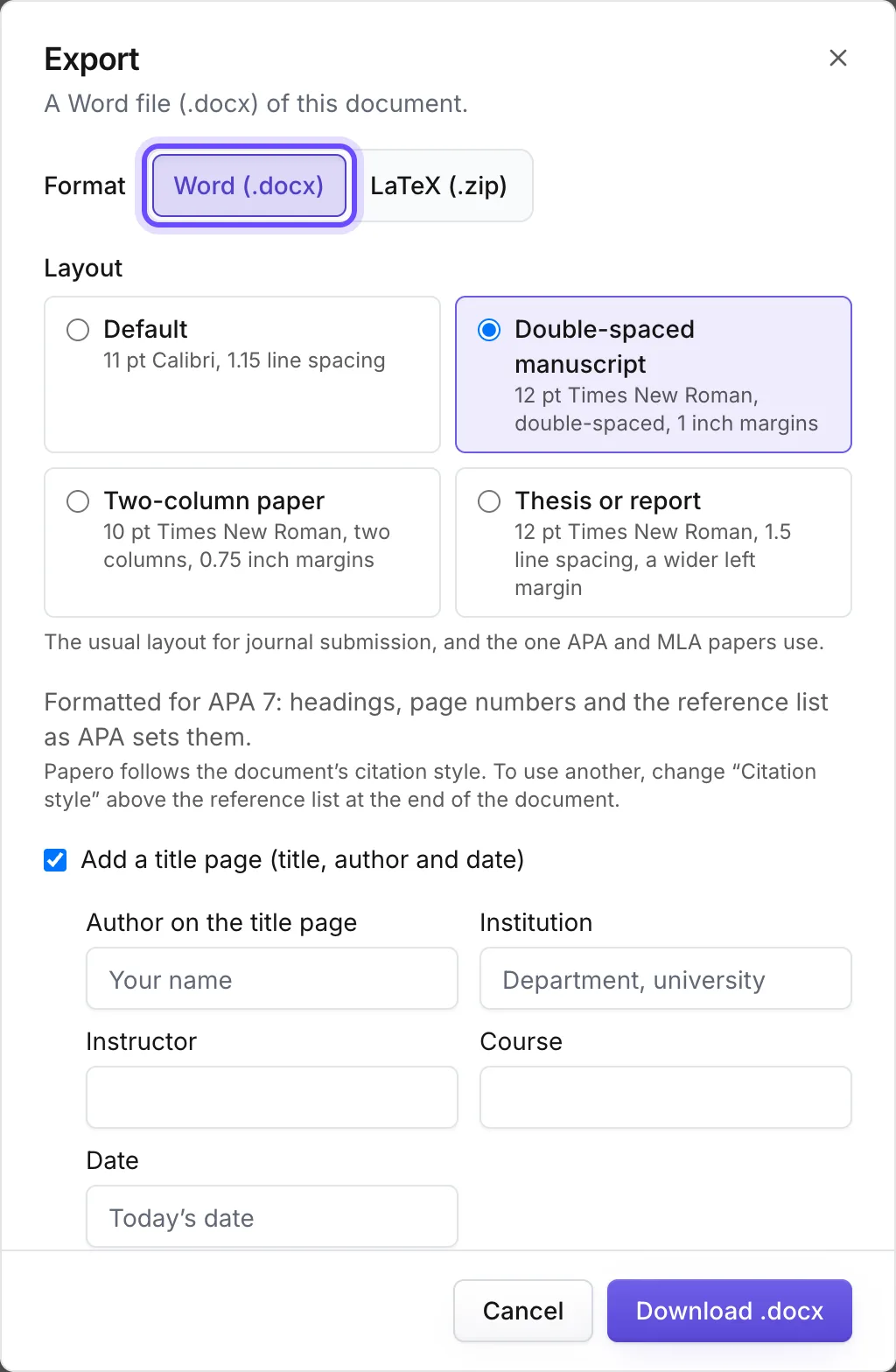
- Under Layout, pick Default, Double-spaced manuscript, Two-column paper or Thesis or report.
- Tick Add a title page (title, author and date) and fill in the fields your course asks for.
- Open More options for page numbers, a contents page or line numbers.
- Press Download .docx and open the file.
- On Free, the file ends with a line that says the reference list is part of Plus. The list itself is in the file on Plus.
- If you kept reading notes under a Notes heading, delete that section in the file before you hand it in.
Practice
Your task
- Note the four rules from your handbook: style, spacing, title page, page numbers.
- Export with the layout that matches them.
- Open the file and run the checklist above.
You are done when the file opens with the title page you were asked for and, on Plus, every source you cite is in its reference list.
Common mistakes
- Typing your name at the top of an MLA paperFor MLA without a title page, fill in Your name, Instructor and Course in the export dialog. Papero writes them on page 1 for you.
- Sending the file unopenedOpen it. A wide table on the wrong page or a missing page number is easy to see and easy to fix.
- Formatting before the text is doneFinish the checks in lessons 15 to 19 first. Export is the last step.
Key points
- Style, spacing, title page, page numbers: get them from your handbook.
- The layout is a setting. Pick it at export.
- Open the file and check it before you send it.
That was the last lesson
Your paper has an outline, cited text, checked sources, a statement on AI use and a file to hand in.
Mark as doneYou marked this lesson as done.