In this lesson you will
- Keep the references for one paper in one library
- Import from Zotero, Mendeley or a BibTeX or RIS file
- Fix duplicates and records with missing details
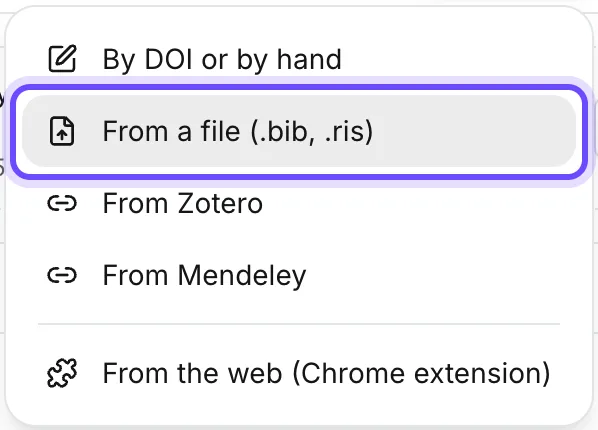
Keep every reference for a paper in one library, so that each citation and the reference list come from one record you have checked. In Papero, press Library in the sidebar, then Import, and choose From Zotero, From Mendeley or From a file (.bib, .ris, .xml). Then check the records your citations will rely on.
One paper, one library
References spread across a reference manager, a folder of PDFs and a list in your notes drift apart. The same study ends up cited two ways, and the reference list no longer matches what you read. One library for the paper ends that.
Look for duplicates first. The same paper often arrives twice: once as a preprint and once as the published article, or once with a DOI and once without. Keep the published version with its DOI and delete the other, unless the preprint is the one you read and cite.
Then look for gaps. A record with no year, no authors or a journal name cut short gives a broken entry in any citation style. Five details matter most: the authors, the year, the title, the journal or publisher, and the DOI. Fix them once in the library, and every citation of that source is right.
Lines to copy
- Checklist for each recordAuthors complete. Year present. Title in full. Journal or publisher named. DOI filled in when the paper has one.
- Note on a duplicateKept the published article with its DOI. Deleted the preprint copy, which I did not cite.
In Papero
Set it up in Papero
Works on Free. Importing from Zotero or Mendeley needs a confirmed email address. Each import is a copy: import again to bring over references you add later.
- Press Library in the sidebar, then Import.
- From Zotero: choose From Zotero, paste a read-only key from zotero.org/settings/keys under Zotero API key and press Read my library. Check the preview, then press Import my library.
- From Mendeley: choose From Mendeley, sign in at Mendeley and allow Papero to read your library. Mendeley sends you back to the Library, and your folders become collections.
- From any other tool, such as EndNote or Google Scholar: export a .bib or .ris file there (from EndNote, RIS as a .txt file or EndNote XML), choose From a file (.bib, .ris, .xml) and press Choose a file. The preview lists the entries it will skip, and why.
- A file or Zotero import ends with Import finished, which says how many sources are new and how many were already in your library. Press Done.
- To fix a record, point at it in the Library and press the pencil to open Edit source. Paste the DOI under DOI, PMID, arXiv ID or ISBN, press Fetch details, check the fields and press Save changes.
- To remove a duplicate, press the bin beside it, then Yes, delete. Papero does not delete a source that a document still cites.
- For papers you find on the web later, From the web (Chrome extension) in the same menu opens Papero Web Importer in the Chrome Web Store.
Practice
Your task
- Bring your references in from the tool where they live now.
- Read what the import skipped or changed, and add back by hand any entry you need.
- Check the records you will cite with the five-point checklist, and delete any duplicate.
You are done when your Library shows the references you brought in, with no duplicate and no missing author, year or title among the ones you will cite.
Common mistakes
- Importing everything you ever savedA library of two thousand references is hard to search. Export only the folder for this paper, or put the import in a collection with Add to a collection (optional).
- Trusting a record as it arrivesA record is only as good as the tool it came from. Check the authors, the year and the DOI before you cite it.
- Keeping two copies of one paperTwo records for one study can give two entries in your reference list. Keep one and delete the other.
Key points
- One paper, one library.
- Authors, year, title, journal, DOI: check them before you cite.
- An import is a copy. Import again when you add more.
Up next · Lesson 6 of 20 · 7 min
Read a research paper in the right order
Notes from one paper, each with its page number
Mark as done and continueYou marked this lesson as done.