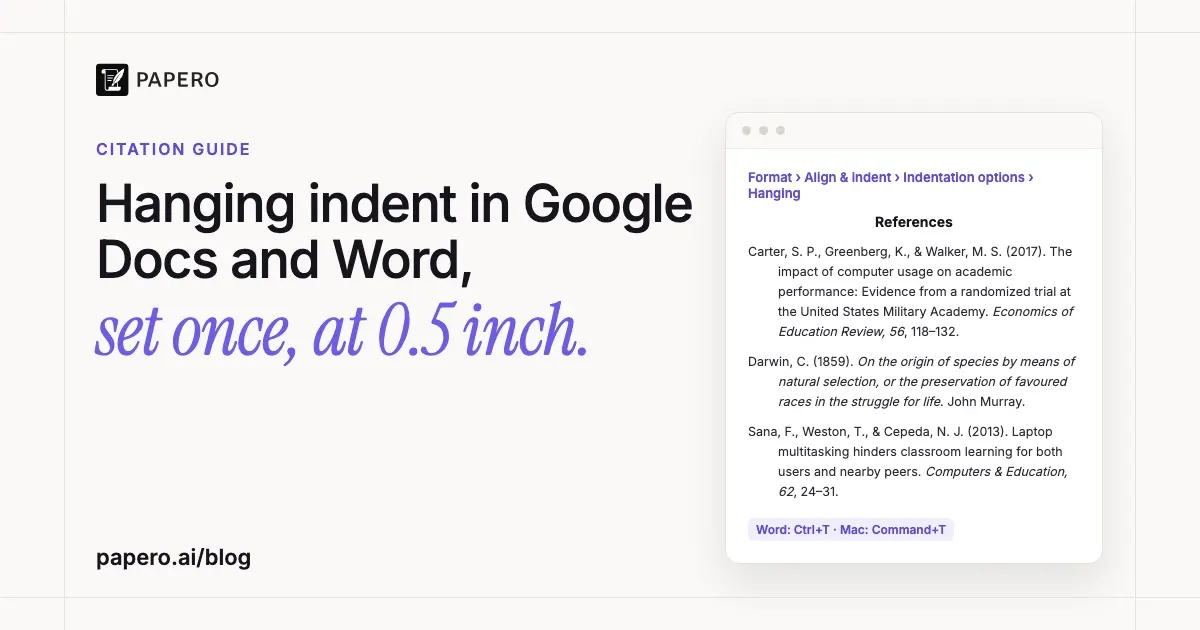
To do a hanging indent in Google Docs, select your reference list, open Format, then Align and indent, then Indentation options, set Special indent to Hanging and click Apply. In Word, select the text and press Ctrl+T (Command+T on a Mac), or open the Paragraph settings and choose Hanging under Special. APA, MLA and Chicago all use a 0.5-inch depth.
Key Takeaways
- A hanging indent keeps the first line of each entry at the left margin and indents every line after it, so readers can scan a reference list by the first word of each entry.
- Google Docs has no keyboard shortcut for it in its official shortcut list; use the Indentation options dialog. Word has one: Ctrl+T on Windows, Command+T on a Mac.
- APA, MLA and Chicago (Turabian) all ask for 0.5 inch, which is also the default the dialogs usually offer.
- Almost every “my hanging indent is not working” problem comes from line breaks typed with Enter, spaces or Tab. Each entry must be one paragraph.
Hanging indent steps at a glance
The table collects the menu path and shortcut for each editor, read from Google’s and Microsoft’s own help pages in October 2026. Menus move between versions, so if a label differs on your screen, look for the same words: Indentation, Special, Hanging.
| Editor | Menu path | Shortcut | Where to set the depth |
|---|---|---|---|
| Google Docs (computer) | Format > Align & indent > Indentation options > Special indent: Hanging | None listed | The box next to Hanging |
| Word for Windows | Home > Paragraph dialog launcher > Indents and Spacing > Special: Hanging | Ctrl+T (remove: Ctrl+Shift+T) | The By field |
| Word for Mac | Format > Paragraph > Special: Hanging | Command+T (remove: Command+Shift+T) | The By field |
| Word for the web | Home > Paragraph dialog launcher > Special: Hanging | Not covered here | The By field |
| Google Slides | Format > Format options > Text fitting > Special indent: Hanging | None listed | The By field |
How do you do a hanging indent in Google Docs?
Highlight every entry in your reference list, click Format in the menu bar, choose Align and indent, then Indentation options. Under Special indent, choose Hanging, check that the box next to it says 0.5 inch, and click Apply. Each entry’s first line stays at the margin and the lines below it move in.
- Type or paste your entries, one per paragraph, with nothing at the end of each line except the text wrapping on its own.
- Highlight all of them. Leave the “References” or “Works Cited” heading out, because it is centred, not indented.
- Click Format, then Align & indent, then Indentation options.
- Under Special indent, choose Hanging. Change the size in the box next to it if it is not 0.5.
- Click Apply.
You can also drag the indent markers on the ruler, but the dialog is more reliable because it sets an exact value. If you paste entries in from a website or a reference manager and they arrive with odd spacing, paste them as plain text first with Ctrl+Shift+V (Command+Shift+V on a Mac), Google’s shortcut for “Paste without formatting”, then apply the indent.
How do you do a hanging indent in Word?
In Word for Windows, select the entries and press Ctrl+T, or go to Home, open the Paragraph dialog launcher, and under Indentation choose Hanging from the Special menu, with 0.5” in the By field. On a Mac, press Command+T, or use Format, then Paragraph. Click OK to apply it.
Microsoft’s help page lists the same Special and By fields on all three versions of Word. The shortcut is the fastest route, but the dialog is worth opening once to confirm the depth, and Ctrl+Shift+T removes the indent if you applied it to the wrong text. The MLA Style Center’s guide to hanging indents in Word notes that Word’s default depth is usually 0.5 inch already, which is what MLA asks for.
If you want every new reference list to start correctly, apply the hanging indent to a paragraph style (for example, a style you name “Reference”) and use that style for each entry. Changing the style later updates every entry at once.
What size should a hanging indent be?
Use 0.5 inch (1.27 cm) for APA, MLA and Chicago papers. APA’s student checklist says the second and later lines of each reference are indented 0.5 inch; the MLA recommends half an inch for works-cited entries; and Chicago’s Turabian guidance applies half-inch hanging indents to bibliography entries. If your brief or a journal’s author guidelines set another value, follow them.
The styles differ more in spacing than in depth, and spacing is the next thing a marker sees:
| Style | List heading | Hanging indent | Spacing of the list |
|---|---|---|---|
| APA 7 | References, bold and centred | 0.5 in | Double-spaced, within and between entries |
| MLA 9 | Works Cited, centred | 0.5 in | Double-spaced, like the rest of the paper |
| Chicago (Turabian) | Bibliography, centred | 0.5 in | Single-spaced entries, with a blank line between them |
Here is the same source in all three formats, as it would look with the indent applied. It is the book used in our guide to block quotes in APA, MLA and Chicago, so you can see the citation and the reference entry side by side.
- APA: Darwin, C. (1859). On the origin of species by means of natural selection, or the preservation of favoured races in the struggle for life. John Murray.
- MLA: Darwin, Charles. On the Origin of Species by Means of Natural Selection, or the Preservation of Favoured Races in the Struggle for Life. John Murray, 1859.
- Chicago: Darwin, Charles. On the Origin of Species by Means of Natural Selection, or the Preservation of Favoured Races in the Struggle for Life. John Murray, 1859. (The 18th edition of the Chicago Manual no longer asks for the city.)
On the page, each of these runs to two or three lines, and only the first line touches the margin. The blog shows them as a list, so set the indent itself in your document.
Why isn’t my hanging indent working?
A hanging indent only indents the second and later lines of a paragraph. If you pressed Enter at the end of each line, every line is the first line of its own paragraph, so nothing moves. Delete those breaks so each reference is one paragraph that wraps on its own, then apply the indent again.
The other four causes we see most often:
- Spaces or Tab used to fake it. It looks right until you edit a word, then every line shifts. Delete the spaces and apply the indent as formatting.
- Only one entry selected. The indent applies to the selected paragraphs. Select the whole list, or the entries you missed.
- The depth is wrong. A 1-inch or 0.25-inch indent is usually a leftover setting. Reopen the dialog and set the size or By value to 0.5.
- Pasted formatting. Entries copied from a web page can carry their own indents and spacing. Paste them as plain text, then apply the indent once to the whole list.
To remove a hanging indent, select the text and set Special indent back to None in Google Docs, or press Ctrl+Shift+T (Command+Shift+T on a Mac) in Word.
Where else do you use a hanging indent?
Reference lists are the main use: the APA reference list, the MLA works-cited list and the Chicago bibliography that goes with footnotes all use one. Annotated bibliographies use it for the citation line, with the annotation indented below it. Outside citation, Chicago calls the same layout “flush-and-hang” and notes it is often used for numbered or bulleted lists.
An annotated bibliography is the case where formatting most often goes wrong, because each entry has two parts. Format the citation with a hanging indent first, then add the annotation as its own paragraph beneath it, indented the way your style guide or instructor asks; our annotated bibliography example shows four entries in that order in APA and one in MLA. If you are building the list for a literature review, get the formatting right on the first few entries, then apply the same style to the rest.
Where Papero fits
Papero is an AI writing workspace for students and researchers, and you can sign up free. According to the Papero homepage, it formats references in APA 7, MLA 9, Chicago author-date, Harvard and IEEE, and exports your document to Word with a default or double-spaced manuscript layout.
That covers the entries themselves: author order, capitalisation and italics are the part of a reference list that takes longest by hand. Check the exported list in your editor anyway, and use the steps above if an indent needs adjusting. The glossary entries on the hanging indent, the reference list and the works-cited list define each term, and our argumentative essay outline shows where the sources come in before the list is written.
Frequently Asked Questions
What is a hanging indent?
A hanging indent is paragraph formatting in which the first line starts at the left margin and every following line is indented, usually by 0.5 inch. It is the standard layout for reference lists, works-cited lists and bibliographies, because the first word of each entry, usually the author’s surname, stands out at the margin.
Is there a shortcut for a hanging indent in Google Docs?
Google’s official keyboard-shortcut list for Docs has shortcuts to increase and decrease the paragraph indent, but none for a hanging indent. Use Format, then Align and indent, then Indentation options, and choose Hanging under Special indent. Word does have one: Ctrl+T on Windows and Command+T on a Mac.
Is a hanging indent 0.5 or 1 inch?
It is 0.5 inch for APA, MLA and Chicago. A 1-inch indent is usually a leftover setting from another document or template. Open the paragraph dialog and set the value to 0.5, unless your instructor or the journal asks for something else.
Do you double-space a reference list with a hanging indent?
In APA and MLA, yes: the whole list is double-spaced, within and between entries, with no extra blank lines. Chicago’s Turabian guidelines single-space each bibliography entry and leave a blank line between entries. The hanging indent itself is the same 0.5 inch in all three.
Does the “References” heading get a hanging indent?
No. The heading is a section label, centred on its own line (and bold in APA). Apply the hanging indent only to the entries below it.
Sources
- Google Docs Editors Help, “Add a numbered list, bulleted list, or checklist”, section “Add a hanging indent” (support.google.com, accessed October 2026): https://support.google.com/docs/answer/3300615?hl=en
- Google Docs Editors Help, “Keyboard shortcuts for Google Docs” (support.google.com, accessed October 2026): https://support.google.com/docs/answer/179738?hl=en
- Microsoft Support, “Create a hanging indent in Word” (support.microsoft.com, accessed October 2026): https://support.microsoft.com/en-us/office/create-a-hanging-indent-7bdfb86a-c714-41a8-ac7a-3782a91ccad5
- Microsoft Support, “Keyboard shortcuts in Word” (support.microsoft.com, accessed October 2026): https://support.microsoft.com/en-us/office/keyboard-shortcuts-in-word-95ef89dd-7142-4b50-afb2-f762f663ceb2
- APA Style, Student Paper Checklist, 7th edition (apastyle.apa.org, accessed October 2026): https://apastyle.apa.org/instructional-aids/publication-manual-formatting-checklist.pdf
- MLA Style Center, “Formatting a Research Paper” (style.mla.org, accessed October 2026): https://style.mla.org/app/uploads/sites/3/2020/12/Formatting-a-Research-Paper_v3_-The-MLA-Style-Center.pdf
- MLA Style Center, “Hanging Indents and Microsoft Word” (style.mla.org, accessed October 2026): https://style.mla.org/hanging-indents/
- MLA Style Center, “Does the MLA still recommend the use of hanging indention?” (style.mla.org, accessed October 2026): https://style.mla.org/does-the-mla-still-recommend-the-use-of-hanging-indention/
- CMOS Shop Talk, “How Do I Format a Bibliography in Turabian/Chicago Style?” (cmosshoptalk.com, accessed October 2026): https://cmosshoptalk.com/2019/03/12/how-do-i-format-a-bibliography-in-turabian-chicago-style/
- CMOS Shop Talk, “Announcing The Chicago Manual of Style, 18th Edition” (place of publication no longer required for books) (cmosshoptalk.com, accessed October 2026): https://cmosshoptalk.com/2024/04/16/announcing-the-chicago-manual-of-style-18th-edition/
- The Chicago Manual of Style Online, Q&A on flush-and-hang style, 18th edition (chicagomanualofstyle.org, accessed October 2026): https://www.chicagomanualofstyle.org/qanda/data/faq/topics/ManuscriptPreparation/faq0132.html