

Tips and tricks
This page follows a paper from plan to hand-in and gives a few tips for each step: how to find papers, cite them, improve your text with AI and check your work. Each tip links to the page with the full steps.
Plan before you write
Section titled “Plan before you write”- Start a new document from a short description of your paper, and let Papero build the outline from it. You can change every heading later. See Write your first document.
- Write a few lines in each section prompt: the points to make, their order, and the sources or data to mention. Autocomplete and section drafts read these prompts, so a good prompt gives better text. See Outlines and headings.
Find sources early
Section titled “Find sources early”- Gather papers before you write on the Find papers page in the sidebar, and save the ones you want to your library. In a section, Find papers under the section prompt searches for that section. See Find papers.
- Open Filters to narrow the results by Published from, Cited by and Journal impact. A filter only sorts out results: read the paper before you rely on it. See Journal impact filter.
- Press Save with PDF when a result has a free PDF, or Get free PDF on a source you saved. With the PDF, Chat can answer from the paper itself, and on Plus the Citation report checks your sentences against its full text, not only the abstract. See Get a free PDF.
- Already have a reading list? Import a .bib or .ris file, or bring in your Zotero or Mendeley library. See Integrations.
Cite as you write
Section titled “Cite as you write”- Type
@after a space to open Cite at your cursor. With the search box empty, Find papers for this sentence looks for papers that match the sentence you are writing. See Cite as you write. - Paste a DOI, PMID, arXiv ID or ISBN into the search box to get that exact paper. See Add a source by its identifier.
- When an autocomplete suggestion says what you meant, Accept and cite takes it and opens the search for that sentence. See Autocomplete.
- On Plus, to keep suggestions and drafts to papers you trust, set the section's Sources to Selected and tick the sources it may cite. See Autocomplete.
Improve your text with AI
Section titled “Improve your text with AI”- Select a sentence and press Rewrite, or
Ctrl+J, to shorten it, simplify it or make it more academic. Under Ask AI, you can also type what to change in your own words. Nothing changes until you accept the preview. See Rewrite text. - Press Generate draft for a first version of a section, then make it yours. The draft waits in a card until you press Add to document. See Draft a section.
- Ask Chat about your sources. Type
/in Chat for ready-made actions such as Find claims that need a citation and Find gaps in my argument, and save the prompts you use often. See Chat with your library and Saved prompts and actions. - Describe a chart in words, or make one from a table. Type an equation in TeX, describe it in words, or take it from a picture. See Charts and equations.
Check before you hand in
Section titled “Check before you hand in”- Open the Review tab of the side panel and press Review my draft. Under More checks, Sources flags retracted papers and preprints, and Claims finds facts and figures with no citation. See Review checks.
- On Plus, the Citation report checks each cited sentence against the papers it cites. See The Citation report.
- Save a named version before a big edit, or before you send the draft to your supervisor. See Version history.
- Share a link so others can read and comment without editing your text. See Share and comment.
- If your course asks how you used AI, insert the AI use statement from the Insert menu and fill it in. See AI use statement.
Work faster
Section titled “Work faster”- Press
Ctrl+Kto find a document or run an action from anywhere. On a Mac, use⌘where this page saysCtrl. See Keyboard shortcuts. - Open the account menu, then Help and Shortcuts, for every key that works in the editor.
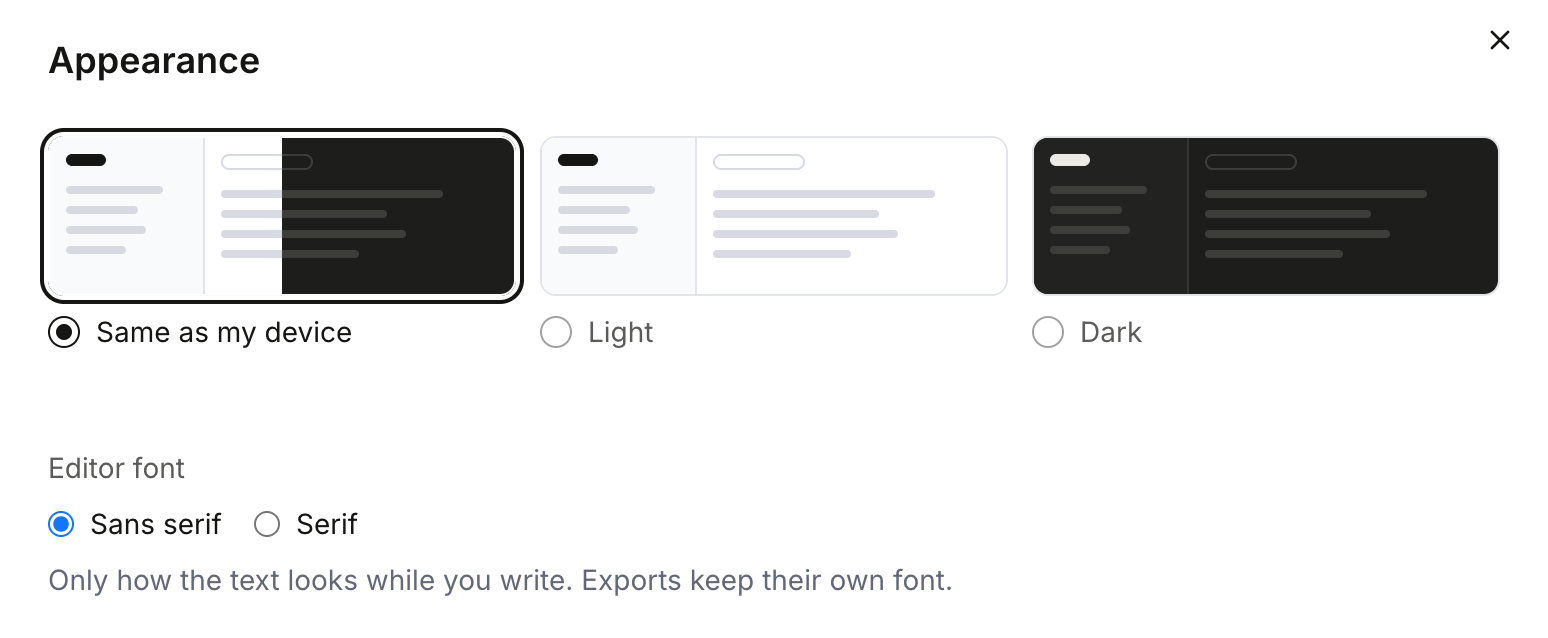
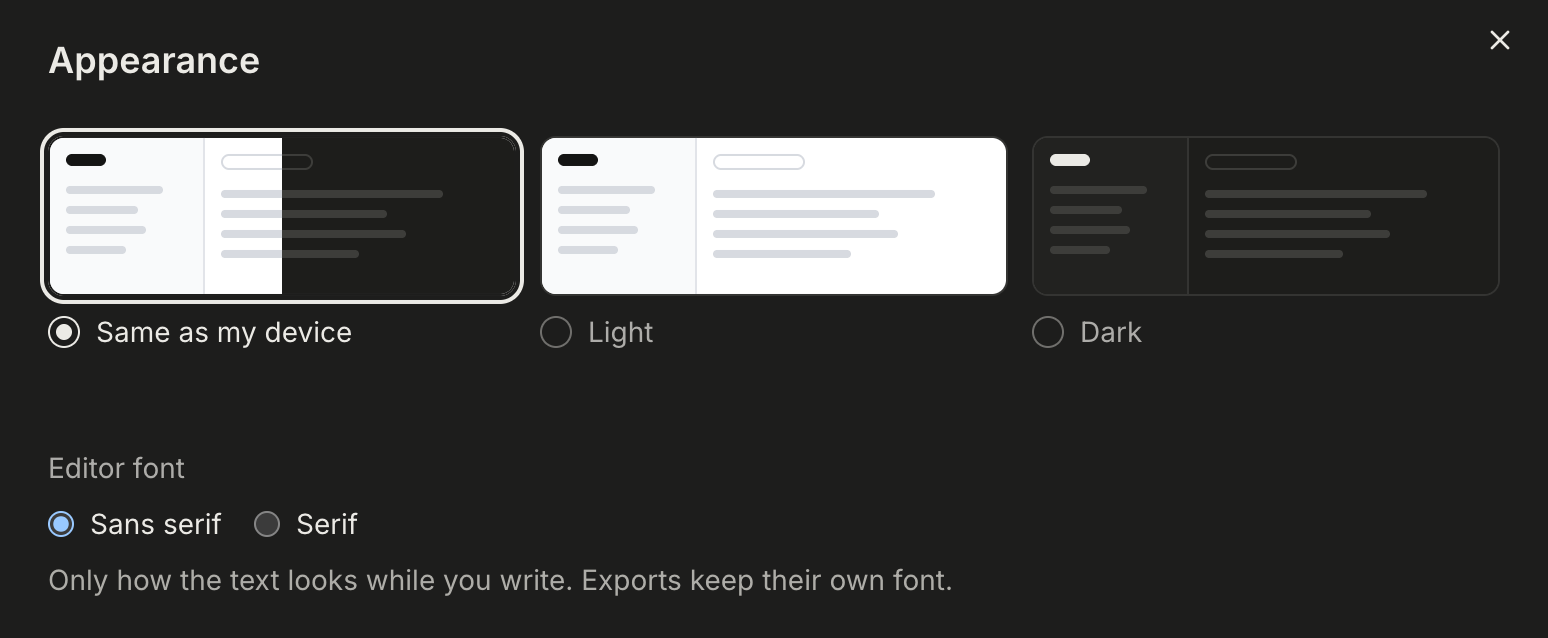
- In Settings, under Appearance, choose Light, Dark or Same as my device, and a Serif editor font if you prefer it. The font only changes how the text looks while you write.
When to move to Plus
Section titled “When to move to Plus”Free is enough to outline, write and cite a paper. Plus adds what you need for the final version: the reference list to read, copy and export, the Citation report, and monthly allowances with a higher fair-use limit on AI. See Free and Plus for everything Plus adds, and the pricing page for the numbers.